
Web UI
GDT includes a beautiful web interface for visual task management. Start the server and access all features through your browser.
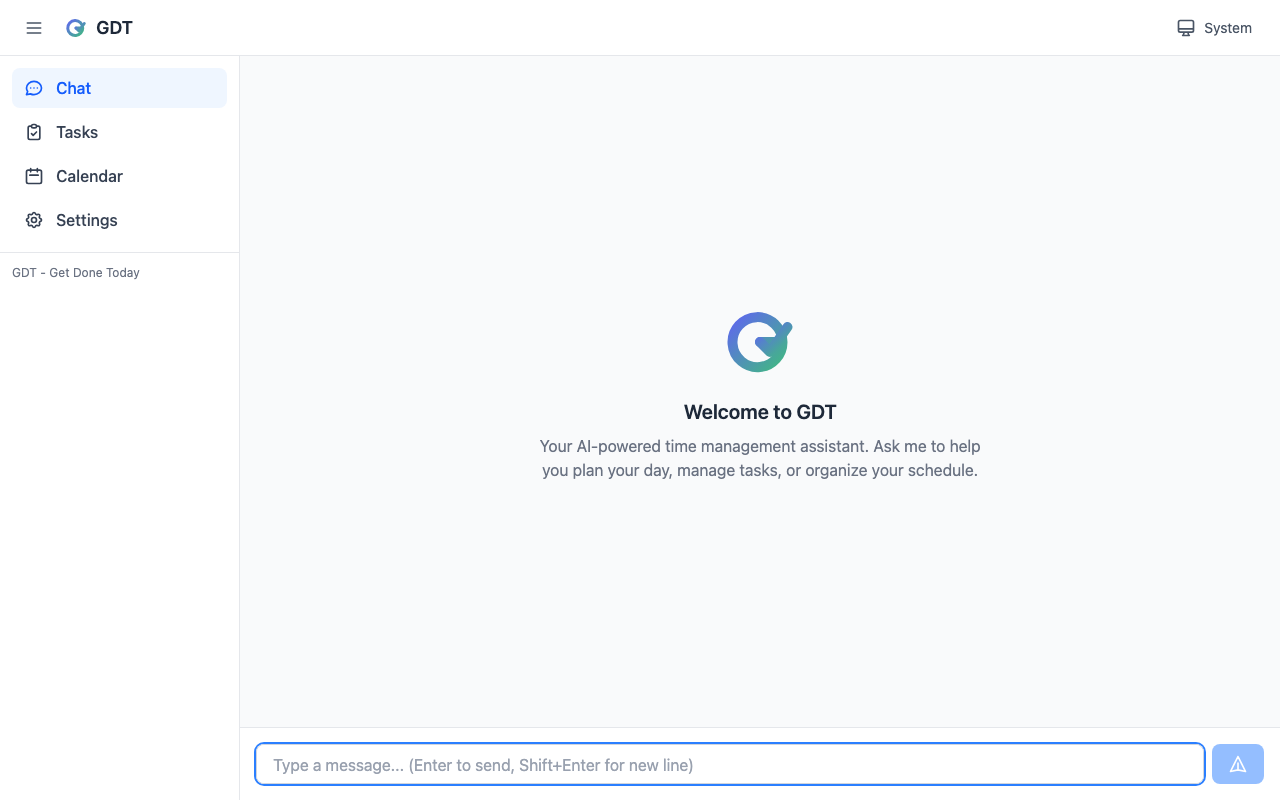
Starting the Server
# Start Web UI on default port (3000)
getdone serve

# Start and open browser automatically
getdone serve --open

# Use custom port
getdone serve --port 8080

# Allow access from other devices on your network
getdone serve --host
Once started, open http://localhost:3000 in your browser.
Dashboard Overview
The Web UI provides a clean, modern interface with these main sections:
| Section | Description |
|---|---|
| Task List | View, filter, and manage all your tasks |
| AI Chat | Converse with GDT just like the CLI |
| Calendar | Week and month views of your schedule |
| Settings | Theme, calendar connections, and preferences |
Task Management
Task List
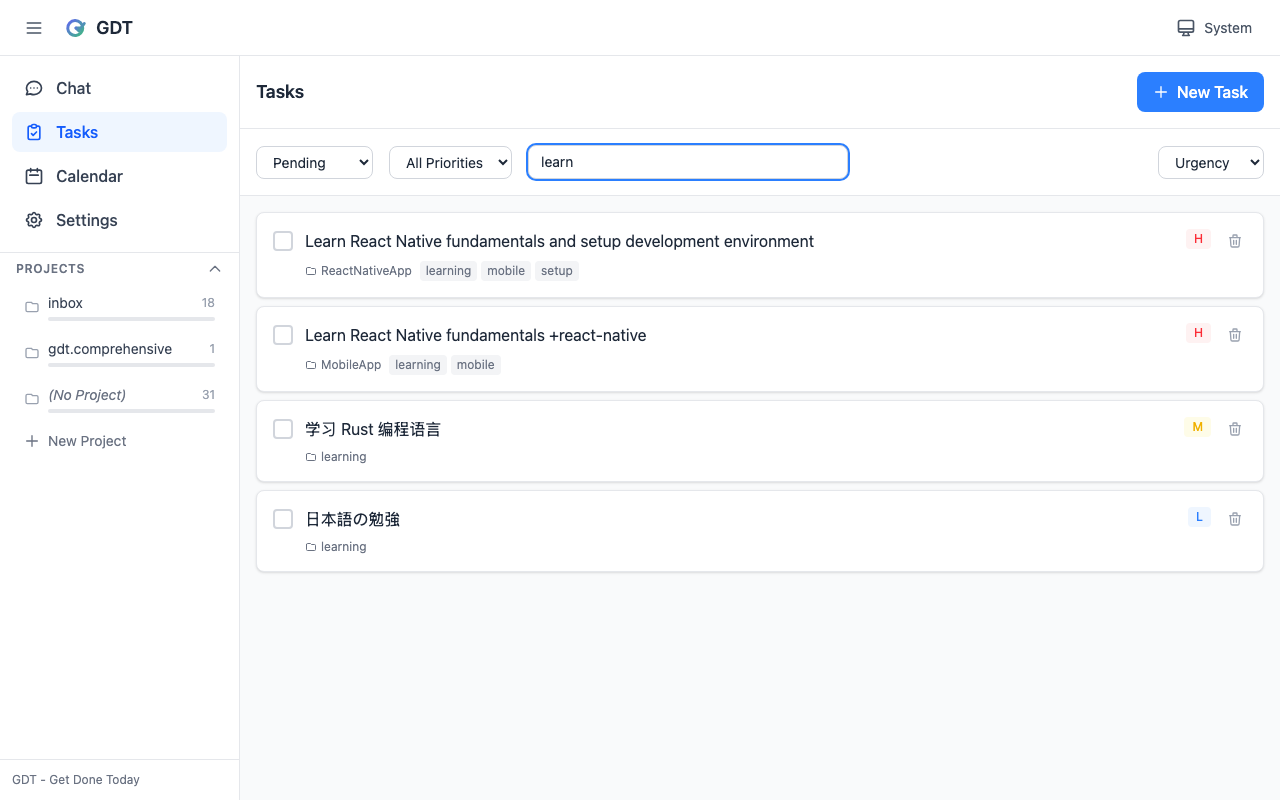
The task list shows all your pending tasks with:
- Priority indicators — Color-coded badges (red=high, yellow=medium, green=low)
- Due dates — Relative dates like "Tomorrow" or "In 3 days"
- Project tags — Group tasks by project
- Quick actions — Complete, edit, or delete tasks
Filtering and Sorting
Use the toolbar to filter tasks:
Filter by:
├── Priority (High / Medium / Low)
├── Project (+work, +personal, etc.)
├── Due date (Today / This week / Overdue)
└── Status (Pending / Completed)

Sort by:
├── Priority
├── Due date
├── Created date
└── Project
Creating Tasks
Click the + New Task button or use the AI chat:
You: Add a task to review the quarterly report by Friday

GDT: Created task: Review the quarterly report
     Due: Friday
     Priority: Medium
AI Chat
The chat interface provides the same conversational experience as the CLI:
- Streaming responses — See AI responses appear in real-time
- Tool call visualization — Watch as GDT interacts with TaskWarrior
- Message history — Scroll through your conversation
- Markdown rendering — Formatted text, code blocks, and lists
Example Conversation
You: What should I focus on today?

GDT: Based on your tasks, here's my suggestion:

     🔴 High Priority
     1. Fix login bug — due today

     📋 If time permits
     2. Review PR feedback
     3. Update documentation

     The login bug is urgent. Want me to break it down into steps?
Calendar Views
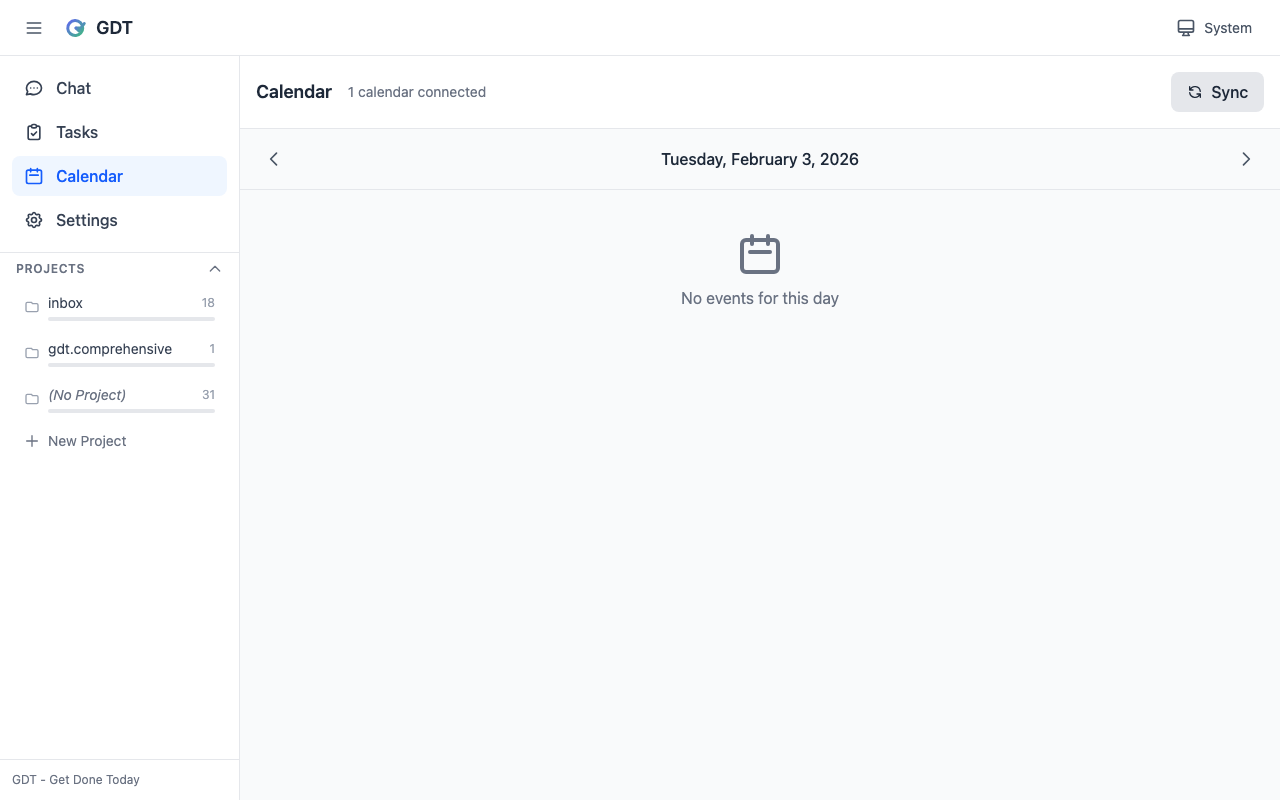
Week View
The week view shows a 7-day grid with:
- Task cards — Priority-colored with project info
- Event cards — Time display for scheduled events
- All-day events — Shown with special badge
- Navigation — Move between weeks with arrow buttons
       Mon 2/3         Tue 2/4         Wed 2/5
       ─────────────   ─────────────   ─────────────
       ██ Review PR    ░░░░░░░░░░░░░   ██ Team sync
       ██ Fix bug      ██ Design mtg   ░░░░░░░░░░░░░
Month View
The month view provides a calendar overview:
- Task indicators — Dots showing tasks on each day
- Click to expand — View tasks for any day
- Today highlight — Current date is emphasized
- Navigation — Move between months
Settings
Theme
Choose your preferred appearance:
| Theme | Description |
|---|---|
| Light | Clean white background |
| Dark | Easy on the eyes at night |
| System | Follows your OS preference |
The theme applies immediately and persists across sessions.
Calendar Connections
Connect external calendars to see events alongside tasks:
- Google Calendar — OAuth integration
- iCloud Calendar — App-specific password
- System Calendar — Native macOS/Windows access
See Calendar Integration for setup details.
Keyboard Shortcuts
| Shortcut | Action |
|---|---|
n | New task |
f | Focus search/filter |
/ | Open AI chat |
? | Show keyboard shortcuts |
Esc | Close dialogs |
Security
The Web UI includes built-in security features:
- Localhost only — By default, only accessible from your machine
- Rate limiting — 100 requests/minute to prevent abuse
- Input validation — All inputs validated with Zod schemas
- WebSocket limits — Max 50 concurrent connections
To allow LAN access (e.g., from your phone), use --host:
getdone serve --hostWARNING
When using --host, the Web UI is accessible to anyone on your network. Only use this on trusted networks.
Troubleshooting
Port Already in Use
# Use a different port
getdone serve --port 8080
Can't Connect from Another Device
- Ensure you started with
--hostflag - Check your firewall allows the port
- Use your computer's IP address (not localhost)
# Find your IP
ifconfig | grep "inet "

# Access from other device
http://192.168.1.100:3000
Slow Response Times
- Check your internet connection (required for AI features)
- Ensure
ANTHROPIC_API_KEYis set correctly - Try refreshing the page
Next Steps
- Calendar Integration — Connect your calendars
- GTD Workflow — Practice GTD methodology
- Commands Reference — All available commands